
Your Gateway to Stunning Graphics: Welcome to Canva! 🎨
Ever looked at those gorgeous social media posts or professional-looking presentations and thought, "I wish I could create something like that"? Well, guess what? You absolutely can! Welcome to the wonderful world of Canva—the design tool that's about to become your new creative best friend.
What Makes Canva Special?
Canva is both a website and mobile app that transforms graphic design from a daunting task into an enjoyable creative journey. Whether you're a complete beginner who's never touched design software or someone looking for a quick, professional solution, Canva has your back!
What can you create?
- Eye-catching social media posts 📱
- Professional business cards 💼
- Heartfelt greeting cards 💌
- Stunning presentation slides 📊
- Custom invitations and flyers 🎉
- And so much more!
The best part? You can start with beautiful templates or build everything from scratch—the choice is entirely yours!
Mobile Mastery: Canva in Your Pocket 📱
Getting Set Up (2 Minutes!)
- Download the app from the App Store (iPhone) or Play Store (Android)
- Create your account using your favorite email service
- Welcome to your creative dashboard! You're now ready to design
Your First Design Adventure
Let's create something fun together—a birthday graphic! 🎂
Step 1: Choose Your Canvas
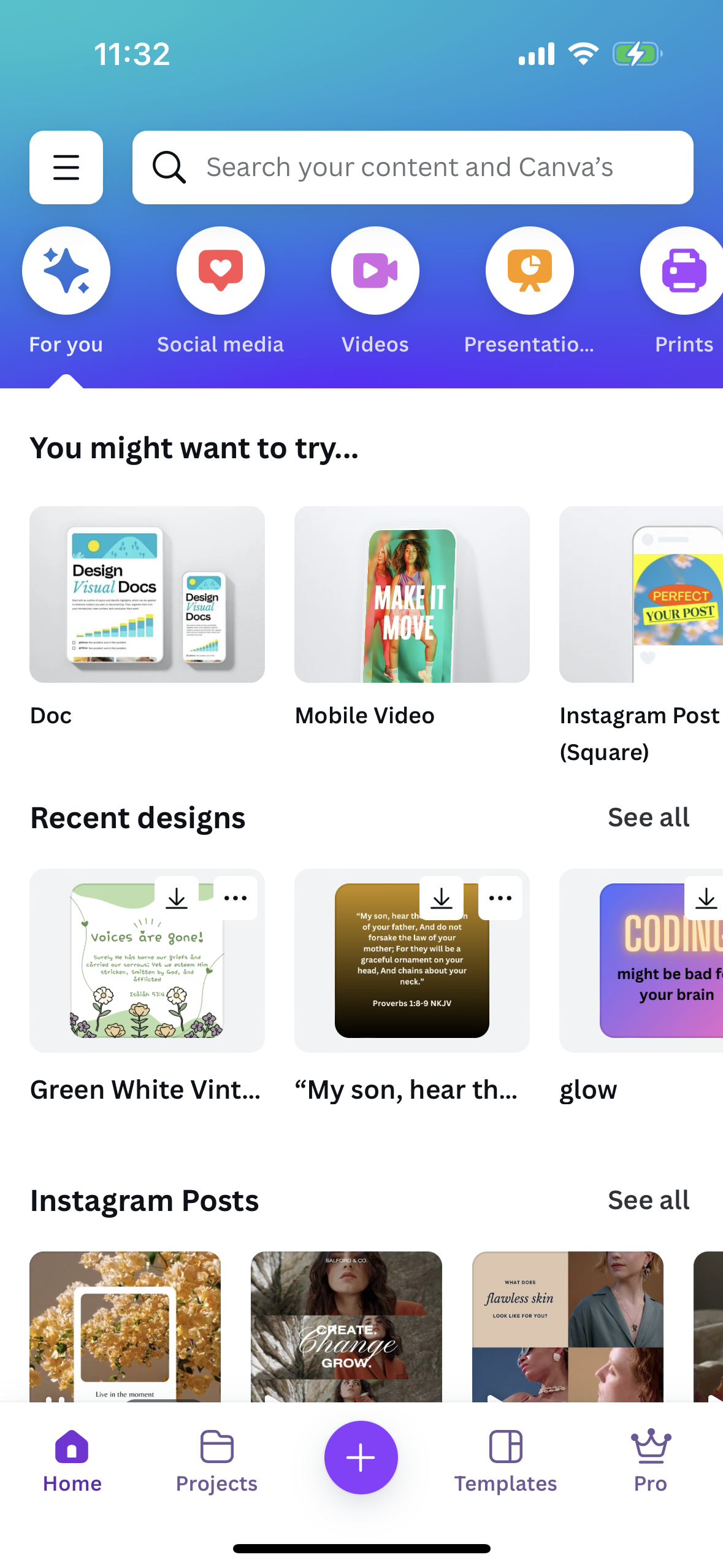
From the home screen, you'll see countless template categories. Let's search for birthday designs!
Step 2: Template Selection
I'm choosing the elegant "Olivia" template.
Pro tip: Templates with crown icons are premium—plenty of amazing free options to start with!
Step 3: Make It Yours
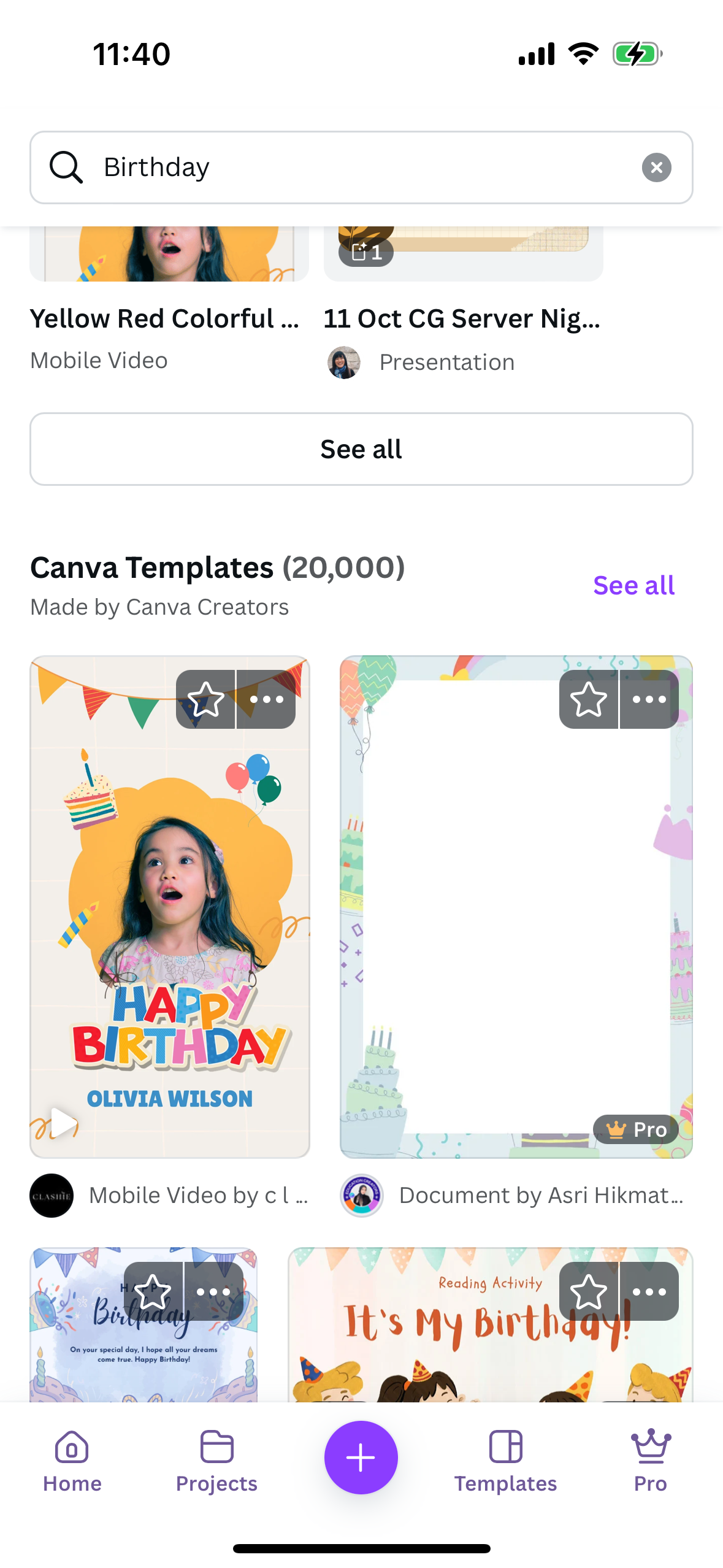
This is where the magic happens! Tap any element to edit:
- Text: Change words, fonts, colors, and sizes
- Images: Swap photos, adjust filters, and positioning
- Colors: Match your brand or personal style
- Elements: Add icons, shapes, or decorative touches
Step 4: Save Your Masterpiece
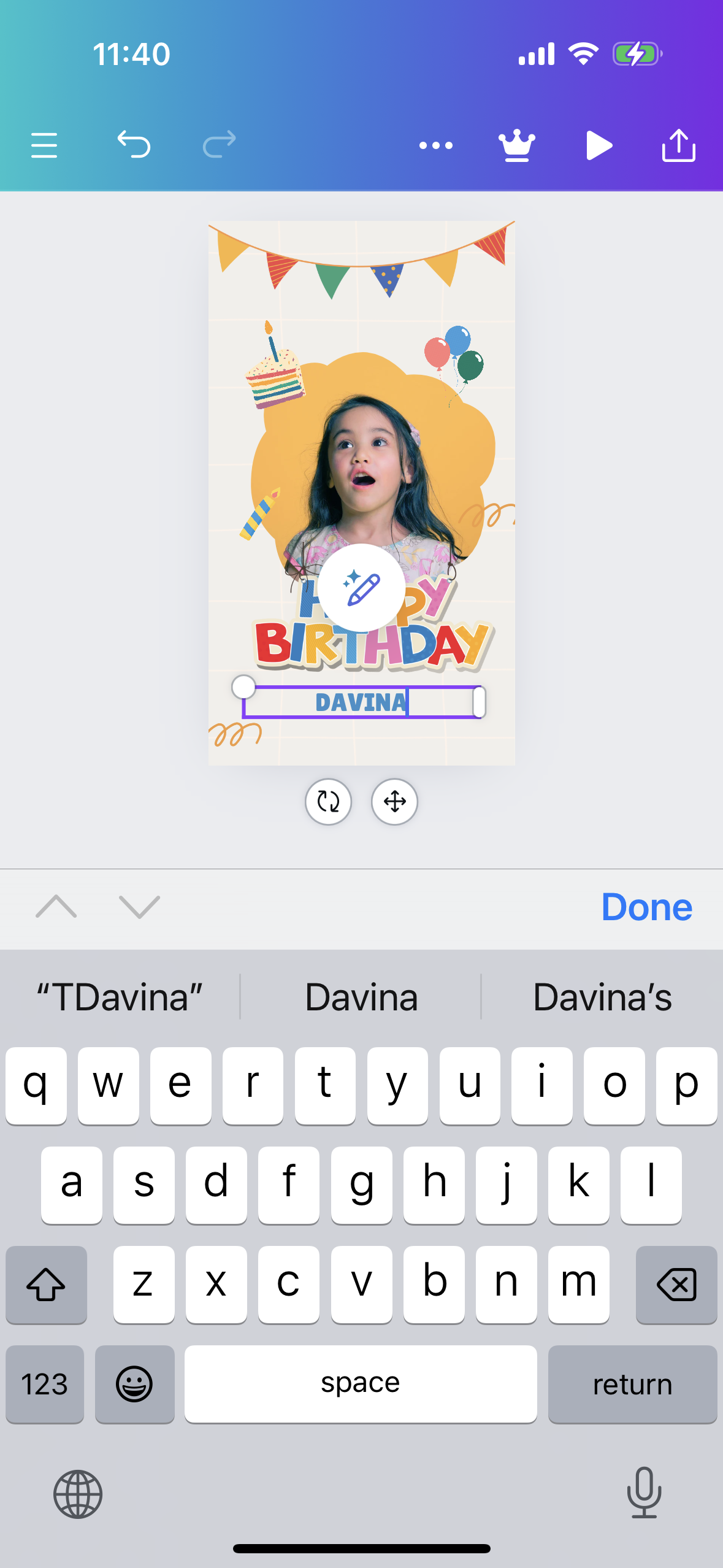
Tap the up arrow (top right) → Download
Recommended settings:
- For images: JPG, 80% quality
- For videos/animations: MP4 Video, Maximum quality
Your creation saves directly to your phone's photo library—ready to share with the world!
Desktop Power: Canva on Your Computer 💻
The Big Screen Experience
- Navigate to www.canva.com
- Sign up with your preferred email
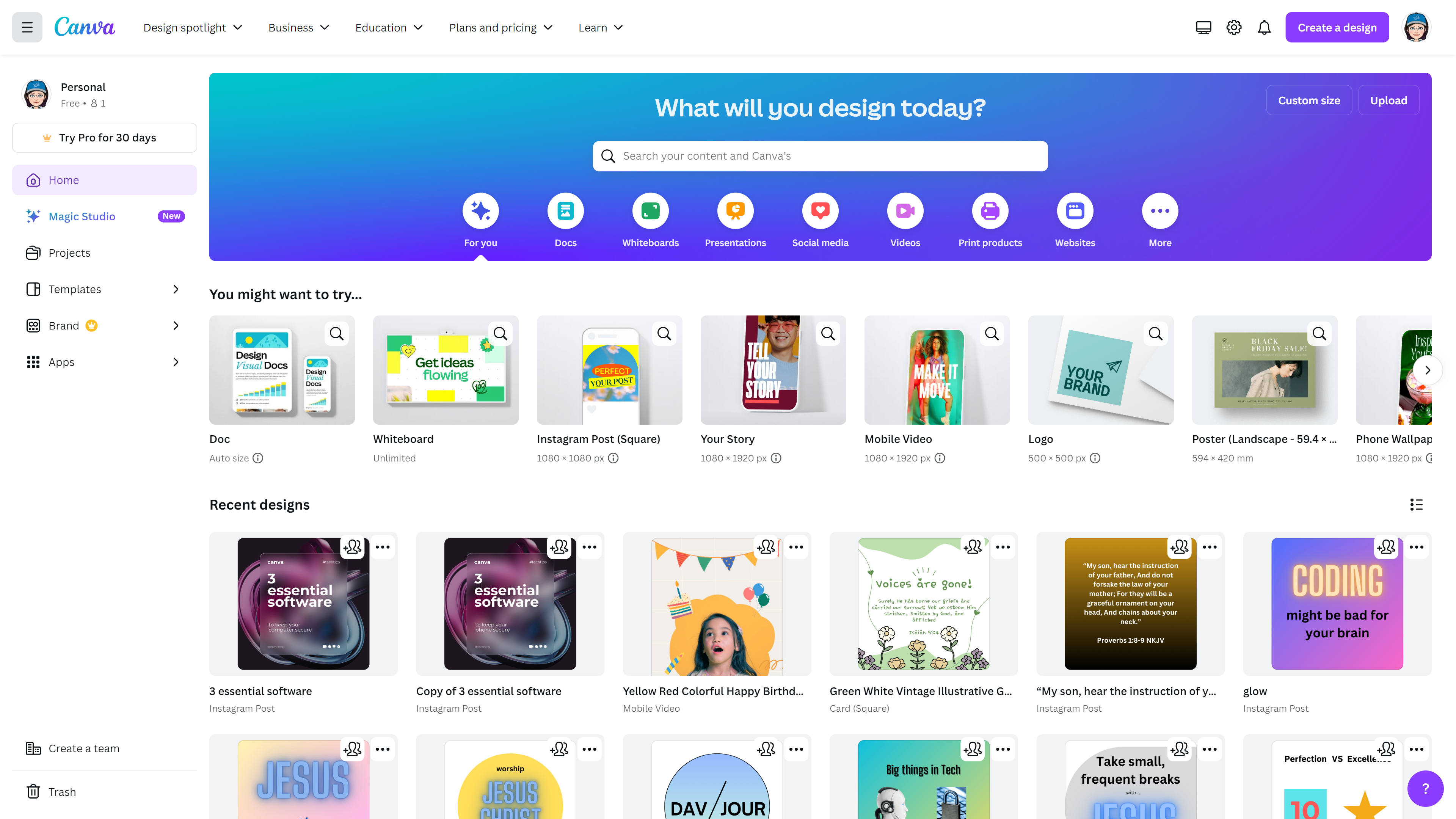
- Explore the expanded interface—desktop gives you more screen real estate and advanced features!
Creating with More Space
The desktop experience offers everything the mobile app does, plus:
- Larger canvas for detailed work
- More precise editing with mouse control
- Advanced features like Brand Kit and Magic Resize (in premium)
- Easier collaboration for team projects
Let's start with a template to keep things simple. Search for "happy birthday" and choose the "Olivia" template (note that crown icons are premium). Click the purple button to get started.
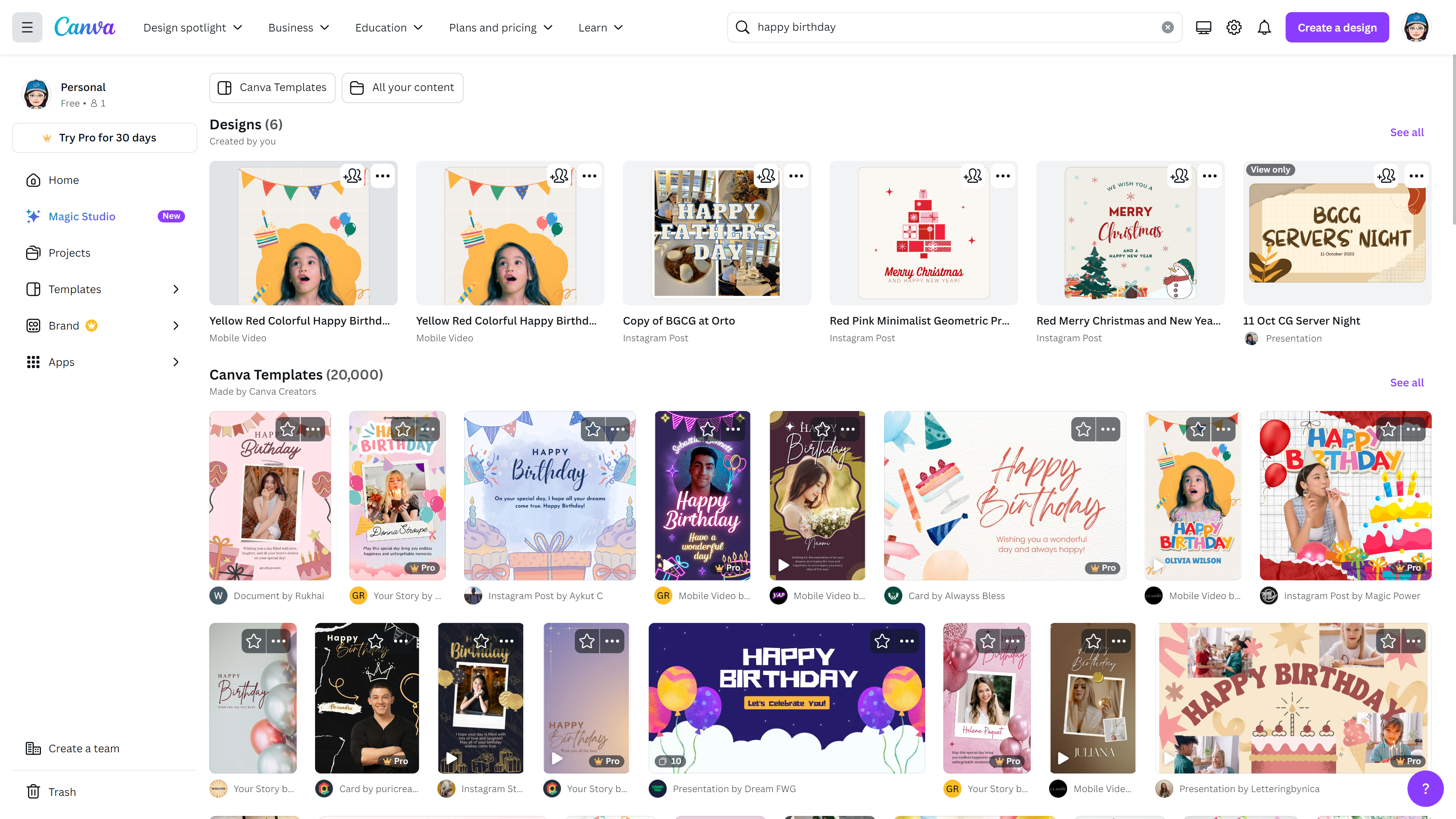
Click on any element to edit it. Once done, click the up arrow icon on the top right.
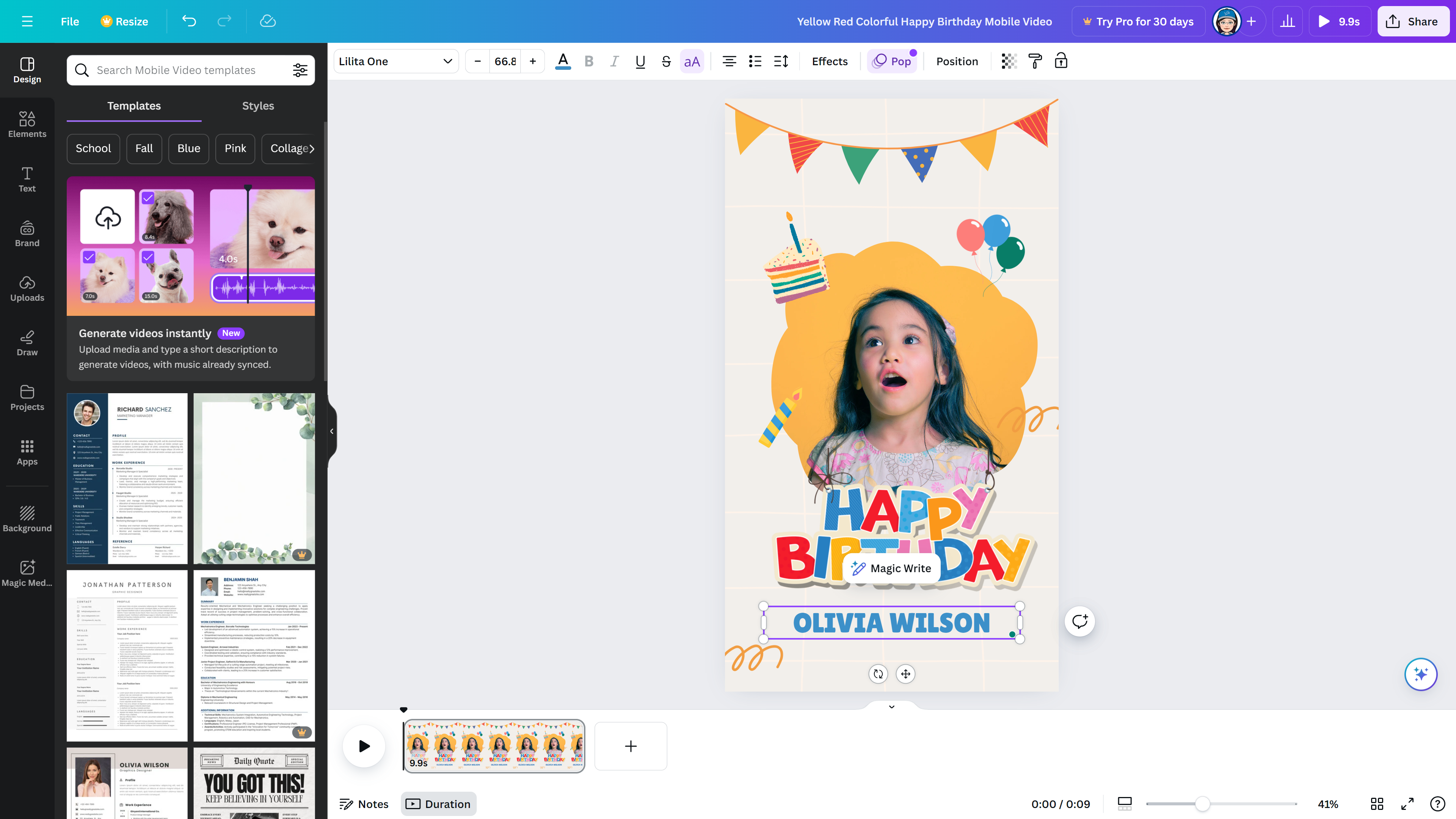
The process mirrors the mobile experience: search for templates, customize elements, and download your finished design!
Design Tips for Success 🌟
For Beginners:
- Start with templates—they're professionally designed and foolproof
- Keep it simple—less is often more in great design
- Use high-contrast colors for text readability
- Maintain consistency in fonts and color schemes
Level Up Your Skills:
- Brand yourself—create a consistent color palette and font combination
- Experiment with layouts—try different arrangements of elements
- Use quality images—Canva offers a vast library of stock photos
- Learn the shortcuts—desktop has keyboard shortcuts for faster workflow
The Creative Journey Begins Now! 🚀
Canva isn't just a design tool—it's your creative playground where ideas come to life! Whether you're designing for personal projects, small business needs, or just exploring your artistic side, you now have the power to create professional-looking graphics in minutes.
Remember: Every design expert started as a beginner. The key is to start creating, experimenting, and having fun with the process. Your unique style will emerge as you explore different templates, colors, and layouts.
Ready to turn your creative vision into reality? Open Canva and start designing—your first masterpiece is just a few clicks away! Happy crafting! ✨
Ready to take your designs to the next level? Stay tuned for more creative tech tips and tutorials!